
Explore Luma R1

Printed text to spoken review

Reading Support

Read combines a camera workflow with on-device text recognition and spoken playback. Teams can compare how capture conditions, page cleanup, voice, highlighting, and navigation settings affect the workflow.

Start with the classroom task

Choose a task to explore

Select an observable task to keep the related product behavior, conditions, and device view together.

Showing Reading Support information for Capture clear printed text.
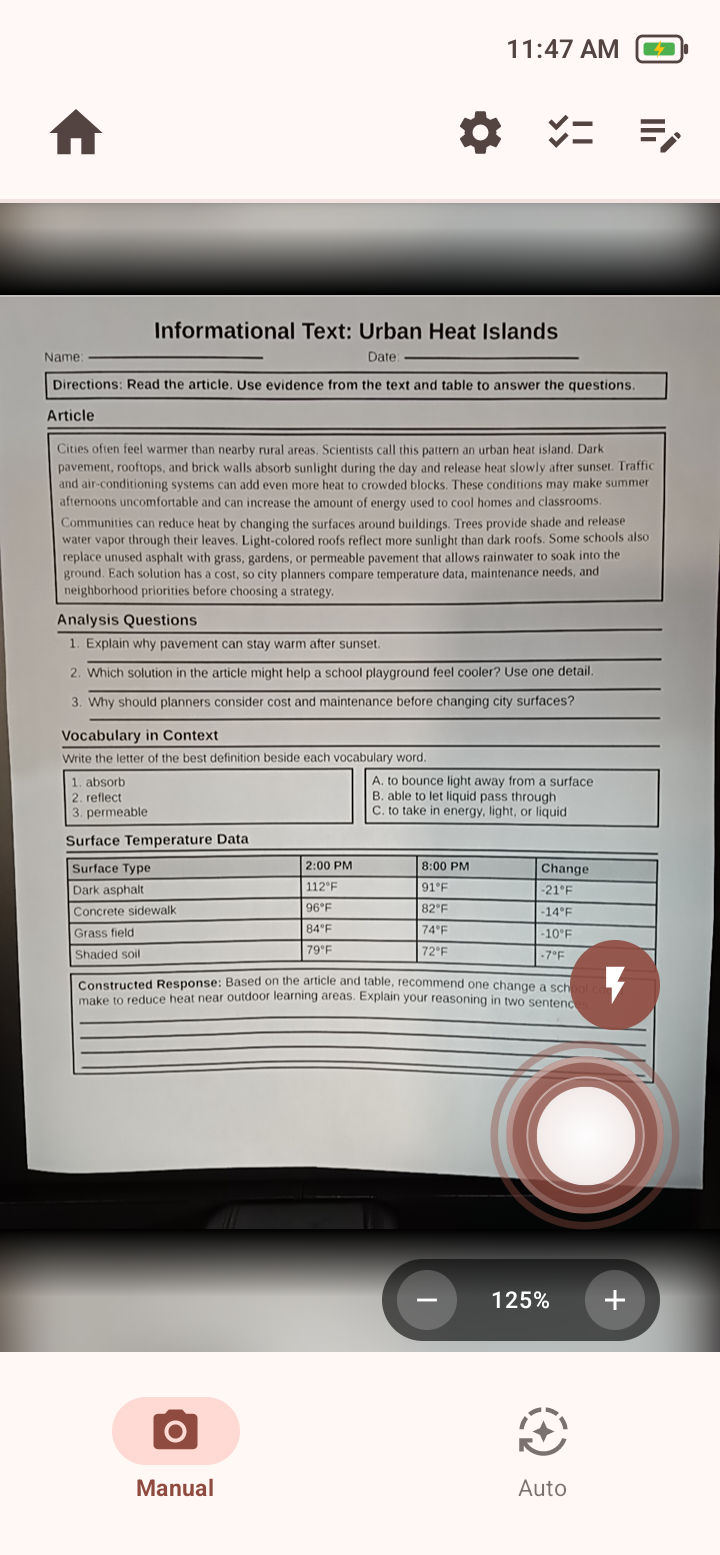
Luma R1 Read camera screen with a printed page in the preview and Manual and Auto capture choices.
Read begins with a live camera preview and Manual or Auto capture.

In Reading

Capture clear printed text

Read offers Manual and Auto capture and is designed to organize tables, columns, and other structured page layouts into a spoken reading order.

Keep in mind

  • Recognition depends on page position, lighting, focus, glare, and printed-text quality.
  • Layout recognition varies by format, so some layouts may be recognized and read better than others.

Available tools

  • Read
  • Manual
  • Auto

Configuration to check

Main Screen After Capture selects Photo Screen or Write Screen.

Keep the page focused

Open the detail you need

Workflows on the deviceConcrete sequences to try while exploring the product.

Step 1

Capture and review a printed page

Open Read, position clear printed text, and use Manual capture or Auto capture. Photo Screen shows the recognized page with an overlay and playback controls.

Step 2

Adjust the result before listening

Crop the useful region, restore the original capture when needed, and use the rotation control when it has been enabled. Then tap text or navigate with Word or Sentence playback.

Things to try and practical limitsSuggested activities, configuration details, and practical boundaries.

Ways to explore this area

  • Try representative printed materials under the lighting and page-position conditions expected in use.
  • Compare Manual and Auto capture, including the selected delay and haptic cues.
  • Observe whether Word or Sentence navigation, voice speed, and highlighting are understandable for the intended task.
  • Include a poor capture and confirm that recapture, crop, restore, or rotation is understandable.

Configuration details

  • Auto-Focus Before Capture, Capture Delay, Progressive Haptic Feedback, Enable Flash, and Show Manual Rotation Button change capture behavior or visible controls.
  • Text-to-Speech engine, voice, playback speed, highlighting, and segmentation settings change spoken review.

Considerations and limitations

  • Read is designed to organize tables, columns, and other structured page layouts into a spoken reading order, but some layouts may be recognized and read better than others.
  • Handwriting, glare, shadows, blur, and page angle can reduce recognition quality.
  • Recognized text should be checked against the printed source when exact wording matters.
  • Flash and manual rotation controls appear only when enabled, and the configured post-capture destination can change the next screen.
  • Opening Camera again starts a new capture session and clears the current captured-text session.
Visual manual and supportDetailed post-purchase operating steps and support paths.

Review reading workflows with your team

Schedule a demonstration or request purchasing information.