
Explore Luma R1

Selected task, timer, and prompt routines

Planning & Routines

Plan provides concrete tools for selected planning and routine tasks. It does not represent comprehensive executive-function support, behavior change, or an individualized intervention.

Start with the classroom task

Choose a task to explore

Select an observable task to keep the related product behavior, conditions, and device view together.

Showing Planning & Routines information for Create and check off a task list.
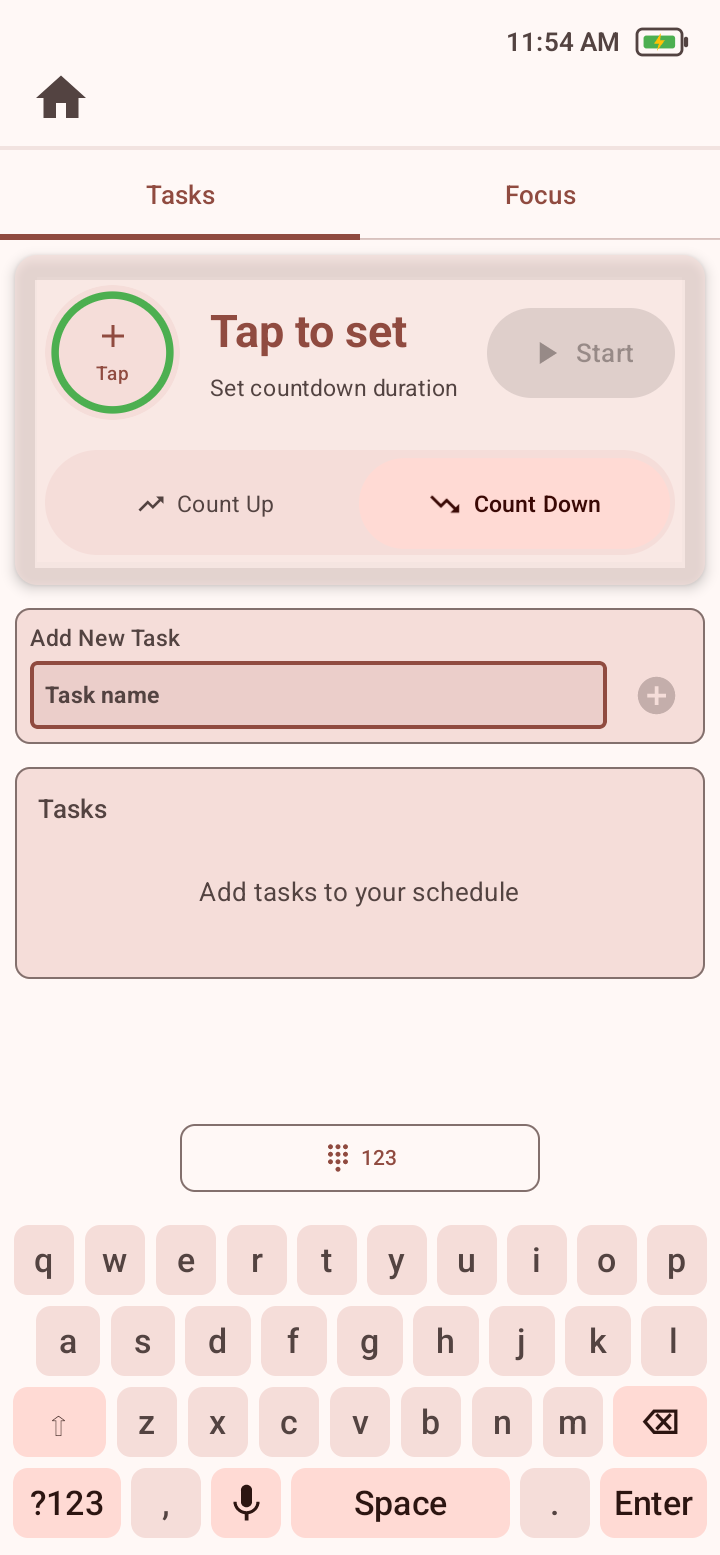
Luma R1 Plan Tasks tab with timer controls, task entry, task list, microphone, and keyboard.
Tasks keeps list entry, playback, completion, deletion, and progress in one view.

In Planning

Create and check off a task list

Plan Tasks provides task entry, speech input, playback, completion, deletion, and progress.

Keep in mind

  • Plan must be enabled through Enable Schedule.

Available tools

  • Plan
  • Tasks

Configuration to check

Enable Schedule controls Plan visibility and supported schedule actions.

Keep the page focused

Open the detail you need

Workflows on the deviceConcrete sequences to try while exploring the product.

Step 1

Build and complete a task list

Enter or dictate a task, add it to the list, play it aloud, mark it complete, or delete it. Plan displays completed-task progress.

Step 2

Run a classroom timer

Choose Count Up or Count Down, set a duration when needed, then start, pause, stop, or reset the timer.

Step 3

Configure a scheduled prompt

Use an Anchor for a message that repeats at an interval within a time window, or an Alarm for a message at a selected time on selected days.

Things to try and practical limitsSuggested activities, configuration details, and practical boundaries.

Ways to explore this area

  • Try a short task list and observe entry, speech input, playback, completion, deletion, and progress.
  • Run Count Up and Count Down, including pause, stop, reset, and completion behavior.
  • Check the device time and date before reviewing Anchors or Alarms.
  • Compare editable and staff-managed Focus configurations, including separate Anchor and Alarm haptic cues.

Configuration details

  • Enable Focus & Alarms controls the Focus tab.
  • Staff can configure Anchors and Alarms and turn off Allow Editing, or leave editing on so students can add, change, or delete their own reminders.
  • Anchor and Alarm haptic patterns and intensity are configured separately; an intensity of zero means None.

Considerations and limitations

  • Planning & Routines covers selected task-list, timer, Anchor, and Alarm workflows; it is not comprehensive executive-function support.
  • When staff turn off Allow Editing, students can receive scheduled prompts but cannot add, change, or delete Anchors or Alarms.
  • Turning off Enable Schedule can clear in-progress timer data.
  • Scheduled prompts depend on the device time, date, recurrence, time window, enabled state, and haptic settings being configured correctly.
  • The tools do not diagnose needs, ensure task completion, or promise changes in organization, attention, independence, or behavior.
Visual manual and supportDetailed post-purchase operating steps and support paths.

Review planning workflows with your team

Schedule a demonstration or request purchasing information.