
Explore Luma R1

Configurable calculation and visual workspaces

Math Support

Math is a configurable set of distinct tools rather than one all-purpose workspace. Teams can enable only the tools they want to explore and compare the controls, representations, and reset behavior in each selected area.

Start with the classroom task

Choose a task to explore

Select an observable task to keep the related product behavior, conditions, and device view together.

Showing Math Support information for Enter and review calculator expressions.
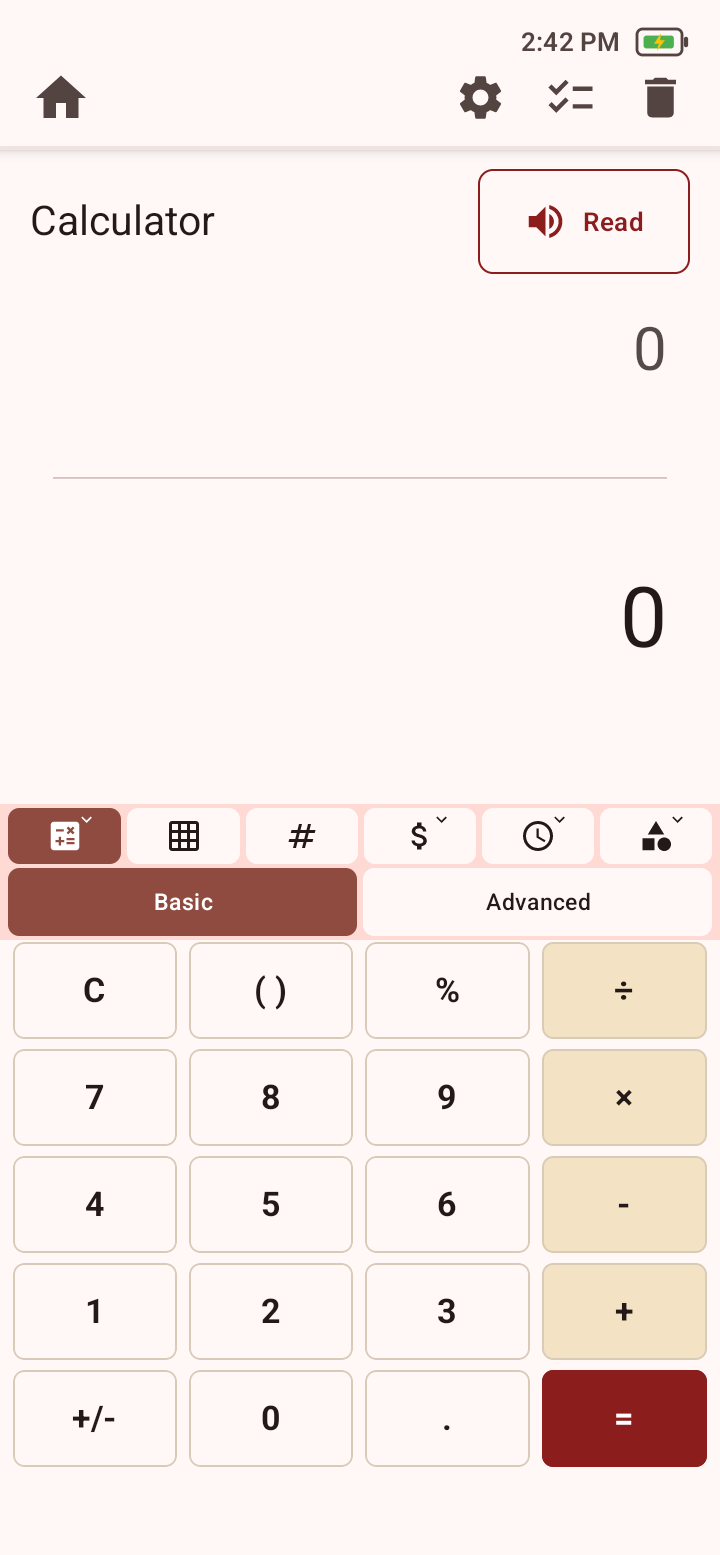
Luma R1 Standard Calculator with an expression display, number keys, operations, and To Paper control.
Standard Calculator supports arithmetic entry, review, clearing, and transfer to Math Paper.

In Math

Enter and review calculator expressions

Standard Calculator and Advanced Calculator provide arithmetic and scientific calculator controls.

Keep in mind

  • Each calculator is visible only when its Math Features switch is enabled.

Available tools

  • Standard Calculator
  • Advanced Calculator

Configuration to check

Enable Math Mode is the master switch for Math.

Keep the page focused

Open the detail you need

Workflows on the deviceConcrete sequences to try while exploring the product.

Step 1

Calculate and move a result to Math Paper

Enter an expression in Standard or Advanced Calculator, then use To Paper to choose a destination cell in Math Paper when both tools are enabled.

Step 2

Build and send work from Math Paper

Enter one number or symbol per cell, draw or erase working marks, and select a region to send an expression to Calculator.

Step 3

Use a task-specific visual tool

Choose 10-Frame, Count or Change or Budget under Money, Clock or Time Math or Elapsed or Convert under Time, or Shapes or Area & Perimeter under Geometry.

Things to try and practical limitsSuggested activities, configuration details, and practical boundaries.

Ways to explore this area

  • Enable only the Math tools you want to explore, then confirm the Home tile and tool selector show the expected choices.
  • Try entering, clearing, reading, and resetting work in each selected tool rather than assuming controls transfer between tools.
  • For Math Paper, try cell entry, drawing, Calculator-to-Paper, and Paper-to-Calculator as separate actions.
  • Confirm that labels, representations, speech controls, and touch targets are understandable at the selected text and display settings.

Configuration details

  • Standard Calculator, Advanced Calculator, Math Paper, 10-Frame, Money, Time, and Geometry have individual visibility switches.
  • Math disappears from Home when Math Mode is off or no individual Math tool is enabled.

Considerations and limitations

  • Math is not a comprehensive mathematics curriculum, tutoring system, symbolic algebra system, or proof of concept mastery.
  • The available tool set depends on Math Mode and individual tool switches.
  • Each workspace supports a defined set of operations and representations. Math topics outside those capabilities are not supported by Luma R1.
  • Spoken output and visual representations should be checked when exact values, units, or notation matter.
Visual manual and supportDetailed post-purchase operating steps and support paths.

Review math workflows with your team

Schedule a demonstration or request purchasing information.