
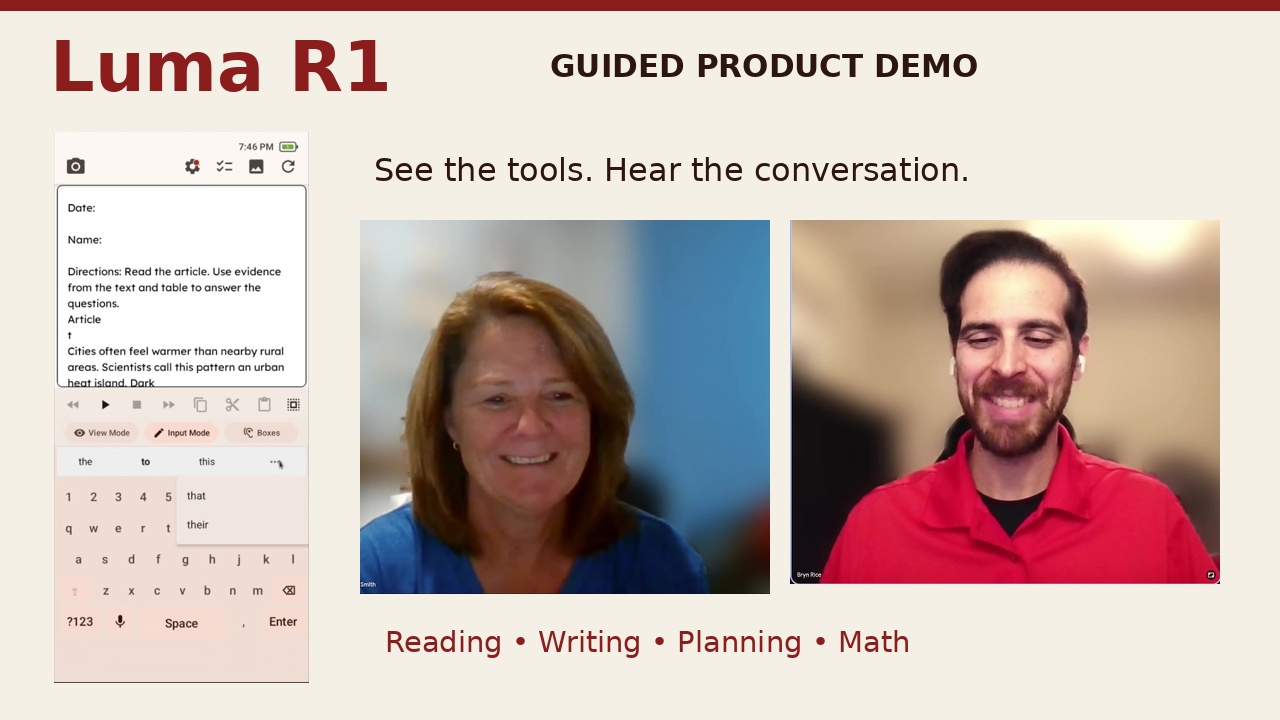
Watch Luma R1 in action

Watch creator Bryn Rice and educator Scotti Smith explore the physical device. Start anywhere in the demo, with no appointment or email required.

Guided device demo

24:15 · Recorded September 27, 2026

Luma R1 guided demo with Bryn Rice and Scotti Smith, featuring the physical device

Loading the video connects to YouTube. Then select Play. English captions are available.

The recording includes the device’s speech output. Setup transitions were shortened; device demonstrations run at their original speed. Computer mirroring is a special demo setup. Features and pricing may change after the recording date.

YouTube blocked at school? Read the transcript above or watch the short screen demos below, hosted on this website.

Two quick workflows

Short screen demonstrations

Open a workflow to watch it with captions or read its descriptive transcript. These clips play directly on this website without YouTube.

1:30 · Screen recording

From a printed worksheet to a written response

See one learner capture printed classroom material, listen to recognized text, speak their own answer, and return to the original worksheet.

Before: The learner has a printed Urban Heat Islands worksheet, a pencil, and Luma R1 on a desk.

After: The learner's spoken answer remains editable on screen, and the learner writes the response on the original worksheet.

Read the descriptive transcript for From a printed worksheet to a written response
  1. 0:00–0:09. The printed worksheet and device are visible together. The learner picks up the device.

    Narration: “Luma R1 can help a learner work with printed classroom material while keeping the original page in the workflow.”

  2. 0:09–0:23. A direct screen capture shows the Manual camera view. The learner frames the worksheet and captures it. The recognized worksheet appears.

    Narration: “Here, the learner captures a worksheet about urban heat islands and opens the recognized text.”

  3. 0:23–0:34. The recognized worksheet is visible with reading controls. Advanced text-to-speech highlights a segment while reading.

    Narration: “Advanced text-to-speech reads the page aloud.”

    Luma R1 speech: “Informational Text: Urban Heat Islands. Directions: Read the article. Use evidence from the text and table to answer the questions.”

  4. 0:35–0:49. The regular reading controls move a word highlight through the worksheet text.

    Narration: “The regular reading controls can follow the text word by word as it is spoken.”

    Luma R1 speech: “Communities can reduce heat by changing the surfaces around buildings. Trees provide shade and release water vapor through their leaves. Light-colored roofs reflect more sunlight than dark roofs.”

  5. 0:49–1:01. In Input Mode, the learner selects the question ‘Explain why pavement can stay warm after sunset’ and activates speech input.

    Narration: “The learner selects where to respond, switches to writing, and speaks their own answer:”

  6. 1:01–1:09. The interface displays ‘Listening’ while the learner's microphone input is represented by narration rather than captured as a separate audio source.

    Narration: “It absorbs heat during the day and releases it at night.”

  7. 1:09–1:15. Speech processing finishes. The response ‘It absorbs heat during the day and releases it at night’ appears below the selected question with the keyboard still available.

    Narration: “The answer appears as editable text, where it can be reviewed or changed.”

  8. 1:15–1:22. The view returns to the desk. The learner holds the paper and begins writing with a pencil.

    Narration: “The learner can then return to the printed worksheet and write the response on the page.”

  9. 1:23–1:30. The camera holds on the learner writing on the original worksheet beside Luma R1.

    Narration: “This is one example workflow. The right tools and supports depend on the learner and the task.”

0:55 · Screen recording

Add multiple tasks by voice

See the learner use voice input to add three items to a short Planner task list.

Before: The learner is on the Luma R1 Home screen and the Planner task list is empty.

After: My tasks contains ‘Finish my worksheet,’ ‘Turn in my worksheet,’ and ‘study for my test for 10 minutes.’

Read the descriptive transcript for Add multiple tasks by voice
  1. 0:00–0:07. Luma R1 sits beside the worksheet. The direct screen capture then shows Home, and the learner opens Plan.

    Narration: “Luma R1 also includes a visual planner for short task lists.”

  2. 0:07–0:16. The Tasks tab shows an empty list. The learner opens Add a task, activates speech input, and ‘Finish my worksheet’ appears for review.

    Narration: “Here, the learner opens the task composer and says, Finish my worksheet.”

  3. 0:16–0:25. The learner reviews the phrase and adds it to My tasks.

    Narration: “After speech processing, the wording appears for review.”

    Narration: “Selecting Add task places the item in My tasks.”

  4. 0:25–0:34. The learner reopens the composer, activates speech input, and ‘Turn in my worksheet’ appears for review.

    Narration: “The learner continues by adding additional task list items.”

  5. 0:34–0:39. The learner reviews the second phrase and adds it. Two task rows are visible.

  6. 0:39–0:46. The learner reopens the composer, activates speech input, and ‘study for my test for 10 minutes’ appears for review. The existing task rows show checkboxes, speaker controls, and more-actions controls.

    Narration: “The saved task can be heard aloud, marked complete, moved, or removed.”

  7. 0:46–0:53. The learner reviews the third phrase and adds it.

  8. 0:53–0:55. The final three-item task list remains on screen.

Take the next step at your own pace

Try sample activities in virtual Luma, or contact us with questions and purchasing needs.